Automatically running electronic structure calculations linked to AIMQB calculations#
The primary electronic structure software that aiida-aimall is integrated with is Gaussian software. Here, a base functionality is provided to run an AIMQB calculation on the .wfx file resulting from a Gaussian calcuation. The GaussianToAIMWorkChain accepts any one of the following as inputs:
smiles, the SMILES of the molecule provided as typeorm.Strstructure, anorm.StructureDataof the moleculexyz_file, aorm.SinglefileDataof a .xyz file
Note that if smiles is provided as input, aiida-aimall uses an MMFFOptimization from RDKIT to generate an input structure for the SMILES. The process of setting up this type of calculation for structure input is provided below.
[5]:
from aiida import load_profile
from aiida.plugins import WorkflowFactory,DataFactory
from aiida.orm import Dict, StructureData, load_code
import io
import ase.io
from aiida.engine import submit
load_profile()
GaussianToAIMWorkChain = WorkflowFactory('aimall.gausstoaim')
AimqbParameters = DataFactory('aimall.aimqb')

gaussian_input = Dict(
                {
                    "link0_parameters": {
                        "%chk": "aiida.chk",
                        "%mem": "3200MB",  # Currently set to use 8000 MB in .sh files
                        "%nprocshared": 4,
                    },
                    "functional": "wb97xd",
                    "basis_set": "aug-cc-pvtz",
                    "charge": 0,
                    "multiplicity": 1,
                    "route_parameters": {"opt": None, "Output": "WFX"},
                    "input_parameters": {"output.wfx": None},
                })
aim_input = AimqbParameters({'nproc':2,'naat':2,'atlaprhocps':True})
# For tutorial purpose, representing a xyz file as a string, and parsing it to get strcutre data
f = io.StringIO(
                "5\n\n C -0.1 2.0 -0.02\nH 0.3 1.0 -0.02\nH 0.3 2.5 0.8\nH 0.3 2.5 -0.9\nH -1.2 2.0 -0.02"
            )
struct_data = StructureData(ase=ase.io.read(f, format="xyz"))
f.close()
builder = GaussianToAIMWorkChain.get_builder()
builder.g16_params = gaussian_input
builder.aim_params = aim_input
builder.structure = struct_data
builder.gauss_code = load_code('gaussian@localhost')
builder.aim_code = load_code('aimall@localhost')
submit(builder)
/Users/chemlab/anaconda3/envs/aiida/lib/python3.12/site-packages/aiida/storage/psql_dos/backend.py:271: SAWarning: Object of type <DbNode> not in session, add operation along 'DbUser.dbnodes' will not proceed
  with session.begin_nested() as savepoint:
/Users/chemlab/anaconda3/envs/aiida/lib/python3.12/site-packages/aiida/storage/psql_dos/orm/querybuilder/main.py:182: SAWarning: Object of type <DbNode> not in session, add operation along 'DbUser.dbnodes' will not proceed (This warning originated from the Session 'autoflush' process, which was invoked automatically in response to a user-initiated operation.)
  result = build.query.count()
[5]:
<WorkChainNode: uuid: ac8a3caa-0d92-4383-8721-bf0026f412ff (pk: 114349) (aiida.workflows:aimall.g16toaim)>
[4]:
from aiida.tools.visualization import Graph
graph = Graph(graph_attr={"size": "6,6!", "rankdir": "LR"})
graph = Graph(graph_attr={"rankdir": "LR"})
graph.recurse_descendants(
    114349,
    origin_style=None,
    include_process_inputs=True,
    annotate_links="both"
)
graph.graphviz
[4]:
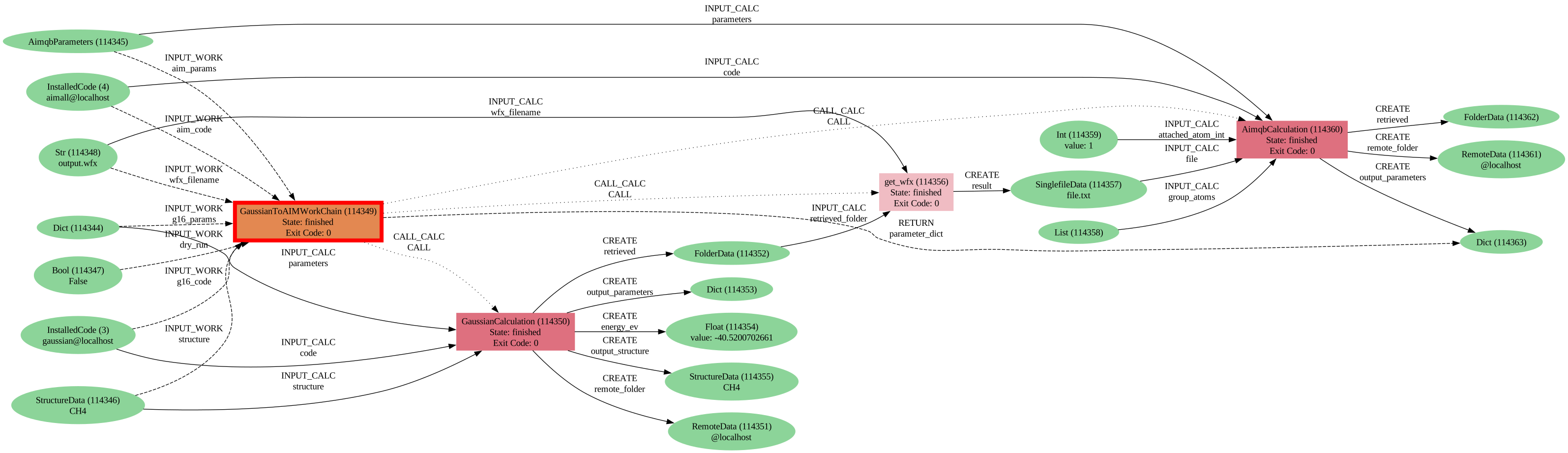
Here, the main output of the workchain is specified as the output parameters of the AimqbCalculations. The structure of this has been discussed in other tutorials. The provenance graph is displayed to see. Gaussian output can be queried for.
Other inputs#
The wfx filename defaults to output.wfx, you can specify that in the Gaussian input input_parameters section. If you specify a filename other than output.wfx, supply the filename to inputs
builder.inputs.wfx_filename = Str('your_wfx_filename.wfx')
Further, you can also supply some information to store various nodes in groups. You can provide wfx_group as a node to put wfx files in, or gaussian_group for a group to store the Gaussian node as an Str. Provided as an option due to the authors’ use case, a fragment_label Str can also be provided to stores as the smiles extra on the node.
Using other Electronic Structure Software#
Options are provided for integrating other electronic structure software through the use of aiida-shell, as provided in the QMToAIMWorkchain. An example is given here for ORCA software. For this, you can provide a setup ShellCode instance for the code being run, or a Str of the command used to run the software.
Author’s Note on shell_code input options#
The authors note that by default settings on some compute clusters, AiiDA commands may be restricted. In the author’s case, providing “orca” to the input results in an error due to the script used in Multifactor Authentication, due to attempts to use the which orca command. In light of this, depending on your compute resources, the authors suggest setting up a ShellCode instance.
from aiida_shell import ShellCode
from aiida.orm import load_computer

code = ShellCode(label = 'orca',
    computer = load_computer('localhost'),
    filepath_executable='/Applications/orca/orca',
    default_calc_job_plugin='core.shell',
    with_mpi=False)
[19]:
from aiida_shell import ShellCode
from aiida.orm import load_computer, List, SinglefileData, Str, load_code
QMToAIMWorkchain = WorkflowFactory('aimall.qmtoaim')
# already have an orca code setup,  you can use the codeblock above to do so

code = load_code('orca@cedar')
builder = QMToAIMWorkchain.get_builder()
builder.shell_code = code
builder.shell_metadata = Dict(
    {
        'options': {
            'withmpi': False,
            # modules for the compute cluster to load
            'prepend_text': 'module load StdEnv/2020; module load gcc/10.3.0; module load openmpi/4.1.1; module load orca/5.0.4',
            'resources': {
                'num_machines': 1,
                'num_mpiprocs_per_machine': 4,
            },
            'max_memory_kb': int(3200 * 1.25) * 1024,
            'max_wallclock_seconds': 3600
        }
    }
)
# again, for tutorial, using a string parsed as file in place of providing an input file
input_file = SinglefileData(io.BytesIO('! B3LYP def2-SVP Opt AIM PAL4\n*xyz 0 1\nH 0.0 0.0 0.0\nH 0.0 0.0 1.0\n*'.encode()))
builder.shell_input_file = input_file
# get the resulting wfx and opt file, the above command creates a file file.txt so we replace the txt with the output extensions we want
builder.shell_retrieved = List([input_file.filename.replace('txt','wfx'),input_file.filename.replace('txt','opt'),])
builder.shell_cmdline = Str('{file}')
builder.aim_code = load_code('aimall@localhost')
builder.aim_params = AimqbParameters({'nproc':2,'naat':2,'atlaprhocps':True})

submit(builder)
[19]:
<WorkChainNode: uuid: 025e0a64-6a77-4012-9455-851e08e1b60c (pk: 114388) (aiida.workflows:aimall.qmtoaim)>
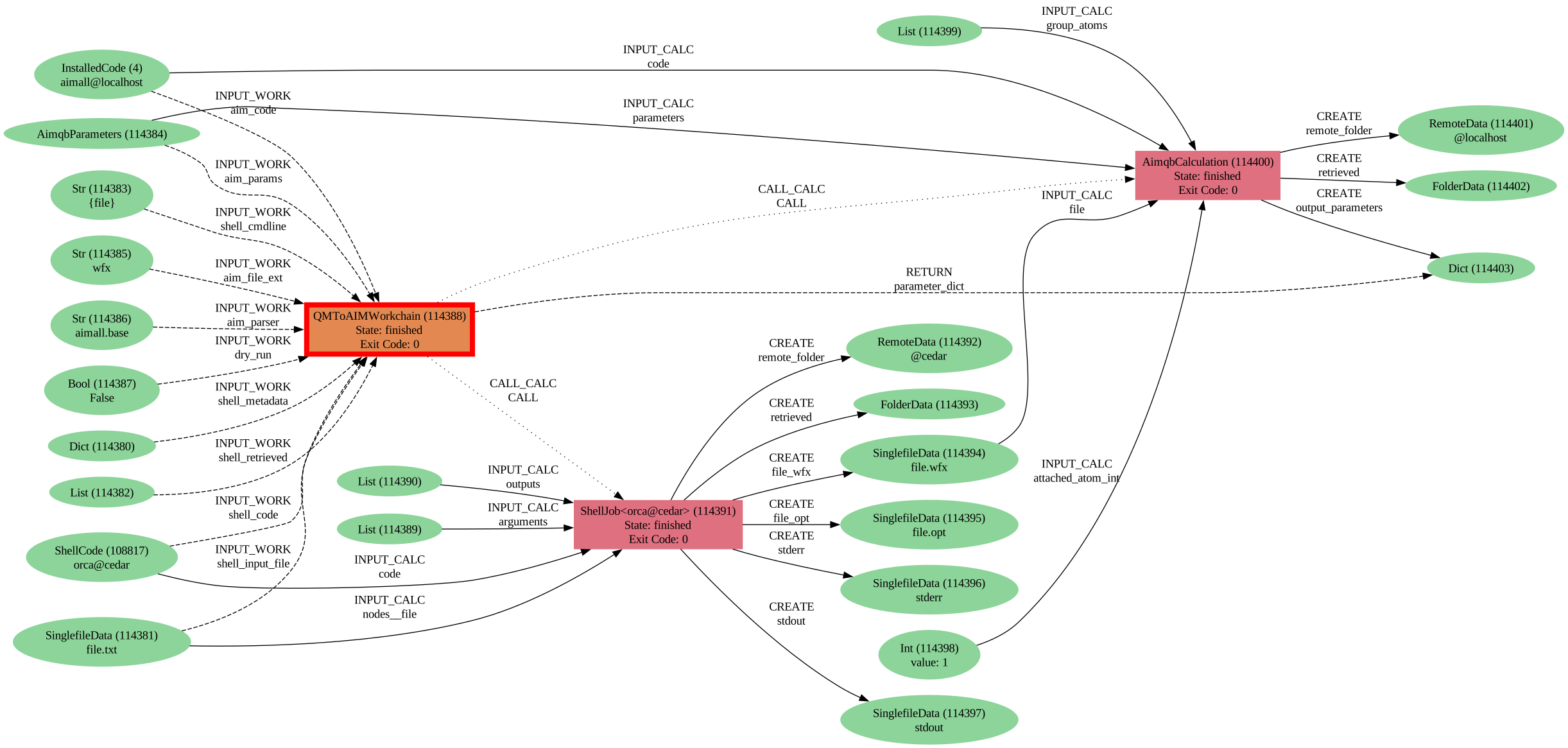
Here, the relevant ORCA output files requested are directly stored on the provenance graph. No parser is provided, though the ability to define parsers is available in aiida-shell. For the purposes of aiida-aimall you can specify which files you want, get them and manually parse the content. Documentation on using custom parsers can be found here. The authors recommend creating a fork of aiida-aimall,
adding the parser function you wish to use to the workchains.py file, and providing parser=your_parser_function_name to launch_shell_job in the QMToAIMWorkchain if you wish to use a custom parser.
[20]:
from aiida.tools.visualization import Graph
graph = Graph(graph_attr={"size": "6,6!", "rankdir": "LR"})
graph = Graph(graph_attr={"rankdir": "LR"})
graph.recurse_descendants(
    114388,
    origin_style=None,
    include_process_inputs=True,
    annotate_links="both"
)
graph.graphviz
[20]: